
SOCKETWorx(SWx) connects to CADWorx(CWx) PID SQL database projects and offers a project website that design teams use to easily produce quality deliverables, such as datasheets and worksheets.
CADWorx P&ID workstations must be configured for and connected to at least one SQL Server. CWx P&ID Projects must be created so that they connect to SQL.
CADWorx P&ID: https://hexagonppm.fluidtopics.net/r/en-US/CADWorx-P-ID/25/357835
Once CWx is connected to SQL, CWx projects must be created with the CWx default or user-modified database tables and columns. Databases can be set to use the default SQL schema (dbo) or any user-created schema. SWx will connect to default or user-created schemas and read all the SQL database table and view objects.
After CWx P&ID SQL project databases exist, SWx must be connected to them.
Connecting SOCKETWorx to CADWorx P&ID SQL Projects
The following methods can be used for any SQL database connection. There are a couple of built-in provisions for CWx projects that are described within them.
- Set up Step 1 - Connections Page / Add SQL database
- Set up Step 2 - Security/Roles Page / Add Connections and Set Privileges
- Set up Step 3 - Tables and Fields Page / Configure
- Set up Step 4 - Data Views Page / Configure
- Related Content:
Video: Transition CADWorx Access project into SQL projects.
Set up Step 1: Connections Page, Adding CADWorx Projects
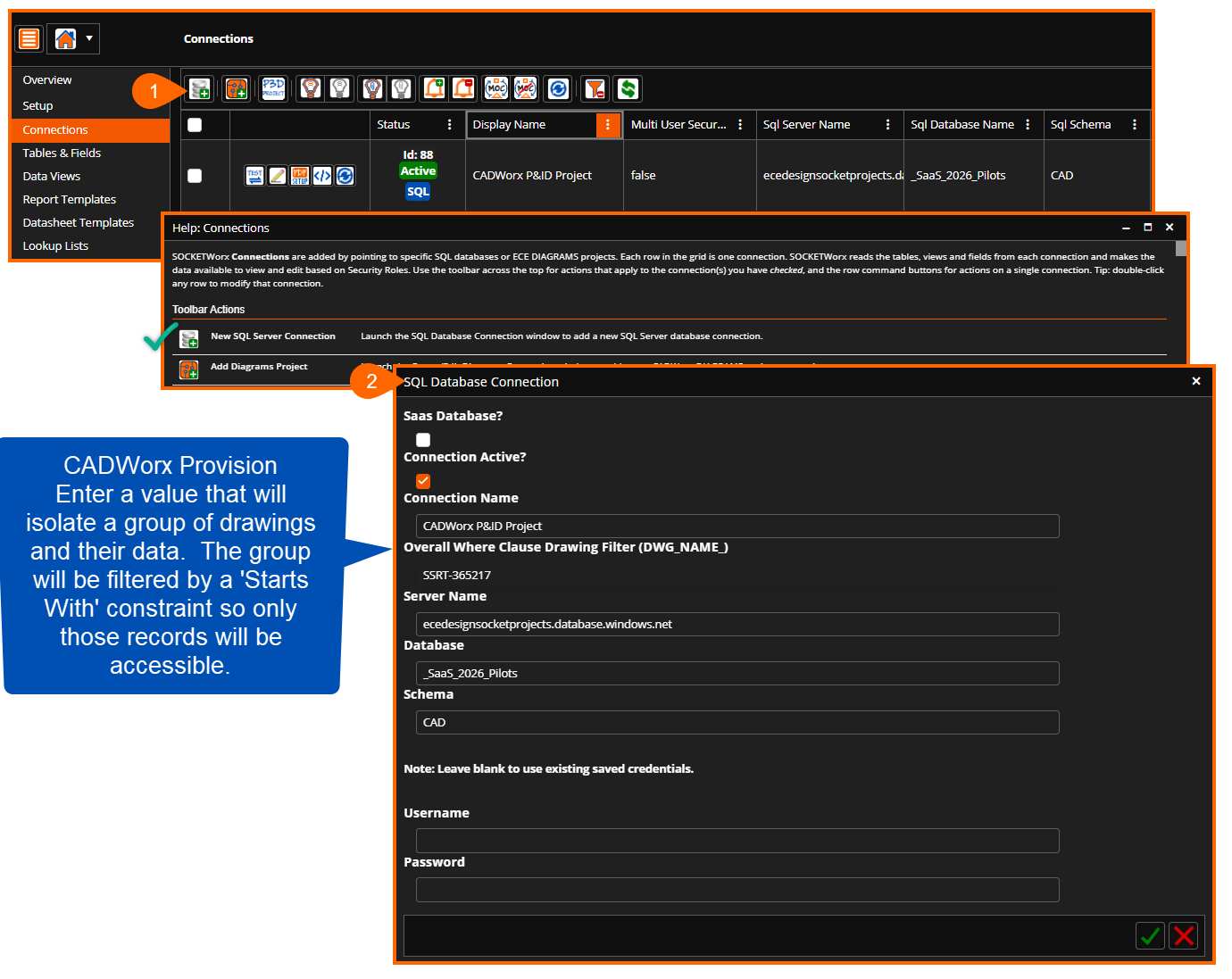
After CADWorx P&ID projects exist on SQL Servers, the Connection page is used to add them. The form requirements for CADWorx are simple.
After CADWorx PID projects exist on SQL Servers, the Connection page is used to add them. The form requirements for CADWorx are simple.
Do not set it as a SaaS Database because you are hosting; set the Connection to Active and enter a user-friendly Connection Name like 'CADWorx Project 100'.
The 'Overall Where Clause Drawing Filter' is a CADWorx provision. It is most often used when combining projects into one database or separating plant areas, but the value entered always represents a Starts With filter for project filenames.
Enter the SQL Server, schema, and login credentials, and click the check mark button to save.
Set up Step 2 - Security/Roles Page / Add Connections / Set Privileges
There are two tasks required on the Security>Roles page.
First, Connections must be added, and then permissions must be set. By default, SWx sets the permissions on all newly added connections to the system to View Only settings. However, it is important to note that newly added Connections are not added roles, and that must be done by users with Security access privileges.
Adding Connections to Roles provides all users assigned access to it based on the Role Permissions. The process must be repeated for every applicable Role. Here, the default Administrator and View Only roles can access the CADWorx PID Project, whereas the Standard role has not yet been assigned Connections.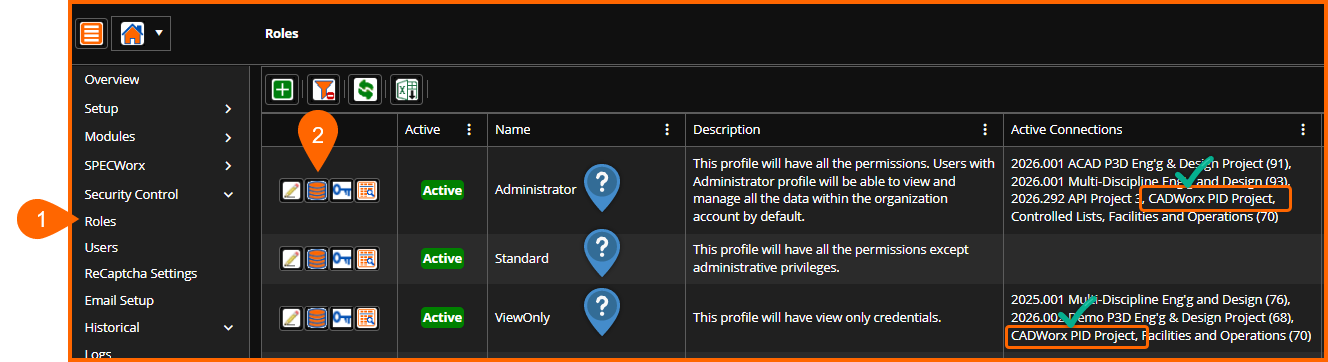
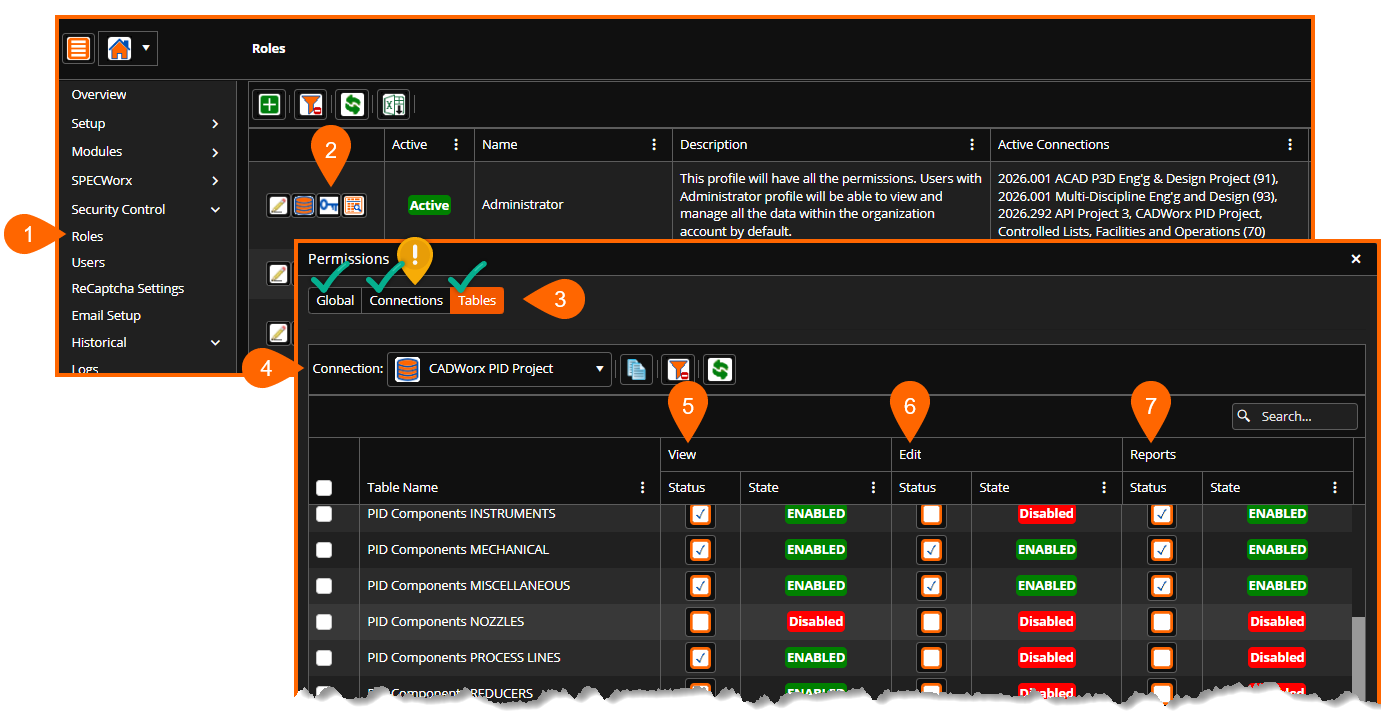
Setting Connection Permission must be done too before users will have rights to view, edit, & report, among an array of others. The Global and Connection permission should be reviewed and set accordingly per role. We highlight the Table permissions because this is where viewing, editing, and reporting is set per table. Most will want editing and reporting turned on for CADWorx Project Roles. By default, they are disabled for new connections, so be sure to enable them.
Set up Step 3 - Tables and Fields Page / Configure
There are many settings for each of the CADWorx P&ID Project database tables. It is here where SWx is configured to help project teams execute by populating data, attaching documents, producing reports, and issuing datasheets. This section covers the basic recommendations for the default CADWorx database, and users will refine them against project requirements and any database modifications.
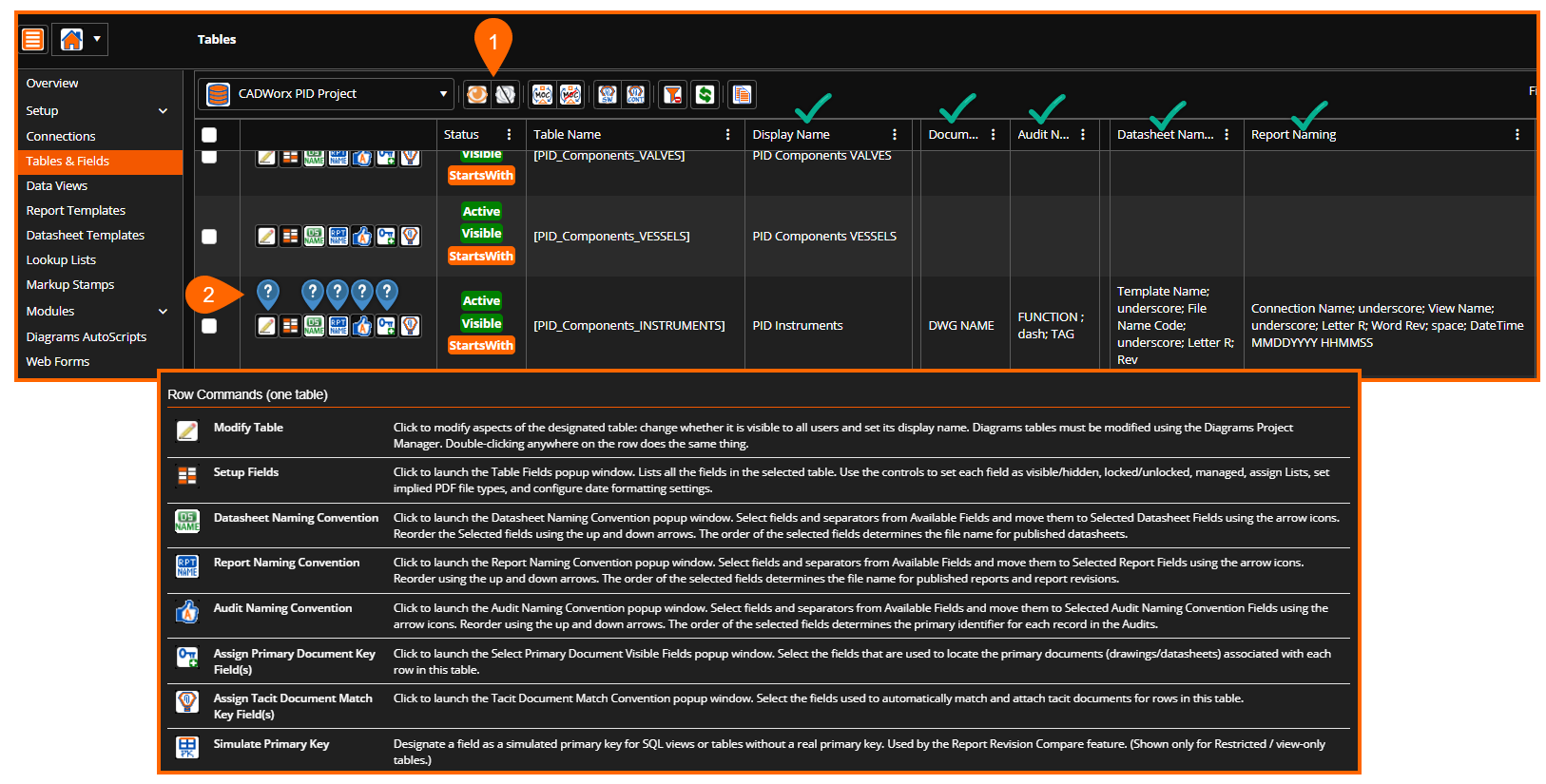
First, set the tables invisible so that users do not see them. Check one or more rows using the first column select boxes, and the 'Hide View' button. This action makes tables, and all their views, hidden from view. Some tables that are normally hidden are the unused USER tables, and other application tables such as PIPE, STEEL, & ECE_ for those PIDMO projects.
Second, use the Row controls to set up SOCKETWorx capabilities;
Modify Table: Use this control to rename the tables because the CWx names are not very desirable. For example, table names all start with 'PID Components', and so often 'Components' is removed from the display name, as shown for the CWx [PID_Components_Instruments] table.
Datasheet Naming: Add a datasheet file naming standard for each table. This must be set before datasheets can be exported. Generally, CWx project names will include [TAG] and/or [FUNCTION] along with the template name, SWx revision level, and separators.
Worksheet Naming: Add a worksheet file naming standard for each table. This must be set before worksheets can be exported. Generally, this will include Connection, Table, View names, along with SWx revision level and separators
Audit Naming: Add a one field or build a concatenation to identify the row when looking at captured data changes. Generally, CWx project audit names will be [TAG_], or for instruments [FUNCTION_], '-'[TAG_]. Some include [IDCOUNT_] to ensure there is an identifier.
Primary Documents: The 'DWG NAME' field will always be set because it represents the CADWorx P&ID filename. There will most likely be more fields added based on project demands, and because it ties into the SOCKETWorx Document and Work Orders systems.
Set up Step 4 - Data Views Page / Configure
Data Views must be added for each table because it is the only way to make records and their columns available for viewing, editing, reporting, and an array of other capabilities.
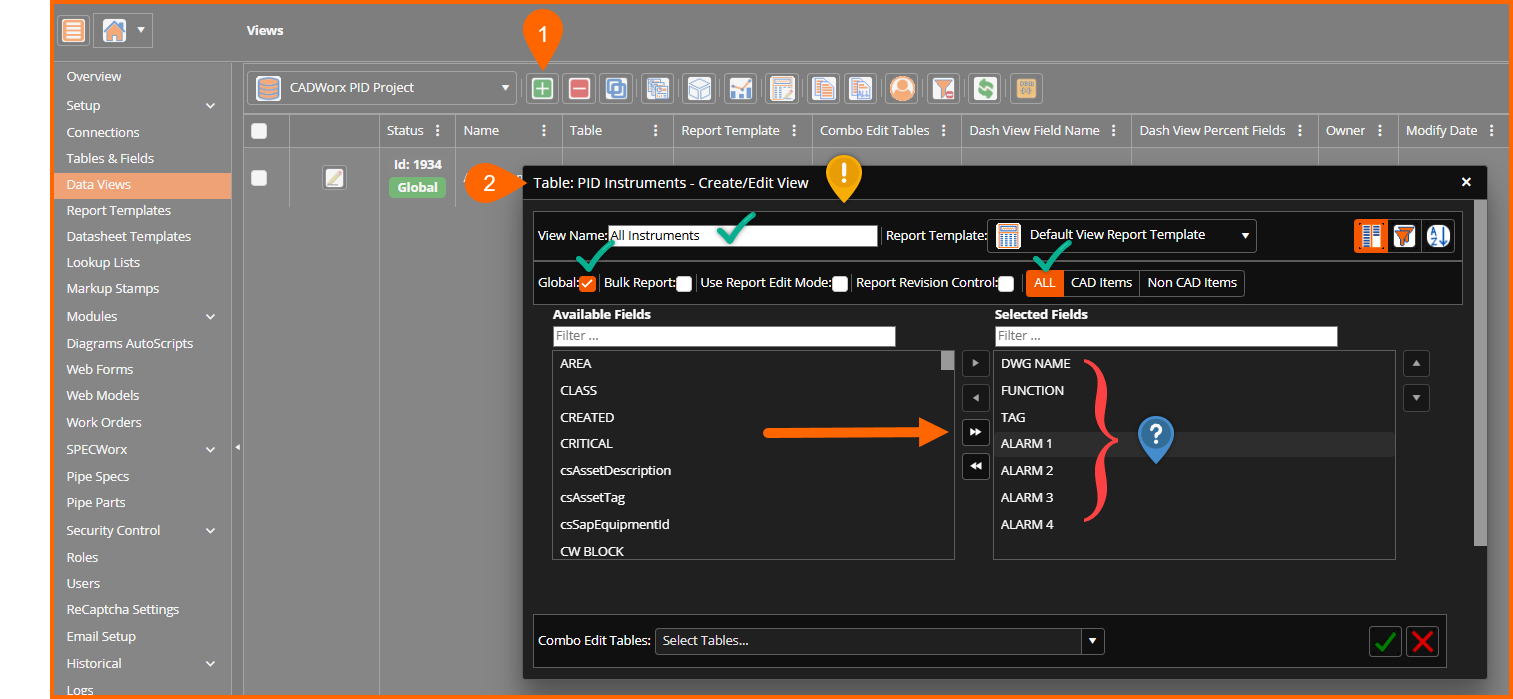
On the Data View page, click the add button and select a table from the pop-up list. Next, the Create/Edit form displays to set up a new view or edit an existing. The same form is used for both operations.
A view name must be entered, and at least one field or column must be selected. Set the view as Global to share with other users, otherwise it will be hidden from them. Set to show all records because CAD and Non- CAD are only provisioned for the ECE Worx Plugin DIAGRAMS. Otherwise, add the fields from the Available list to the Selected list and arrange there as desired using drag and drop or the up/down buttons to the right of them
Having the drawing filename be in the first column, or otherwise, enables users to view and edit entire data sets, but still filter and sort by P&ID.
Related Content
Transition CADWorx Access project into SQL projects. This video, albeit dated, is still very applicable to the task of preparing CADWorx P&ID Projects so that they can connect with SOCKETWorx.task