
Scope
This document educates BUBBLEWorx users on the built-in colorization states bubbles adopt after insertion and subsequent 3D model changes. These are some of the color states that are unique to the BOM palette tab bubbles. The Weld, Tag, and Master Material List (MML) colorizations are similar, but there are differences.
It explores the MML tab Drafting Controls available to sync existing bubbles with initiating a built-in inspection of bubble associations with the 3D parts and BOM tables within the active drawing.
Prerequisites
Software: BUBBLEWorx
3D Model: CADWorx Plant, CADWorx Structure, or AutoCAD PLANT 3D parts
Colorization States:
The BUBBLEWorx interface palette in AutoCAD includes built-in quality-control tools. Since BUBBLEWorx strives to maintain associations among its bubbles, MML tables, and the 3D model parts being marked, it colorizes bubbles to inform users of their health.
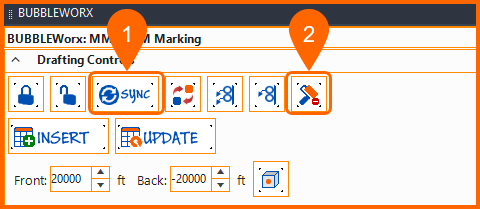
New Bubble Added
Every time bubbles are inserted, the MLeader objects layer is set, but the identifiers are set to YELLOW by the system.
- Insert Bubbles and MML values are YELLOW
MML Bubble values are inserted into the layer set under the Worx Settings, but its color is set to YELLOW. This color will persist until the Color Reset command is executed. All bubble MML values will change from YELLOW to the layer and block attribute settings.
Note: The default inserted state color is yellow, and there are no options to change.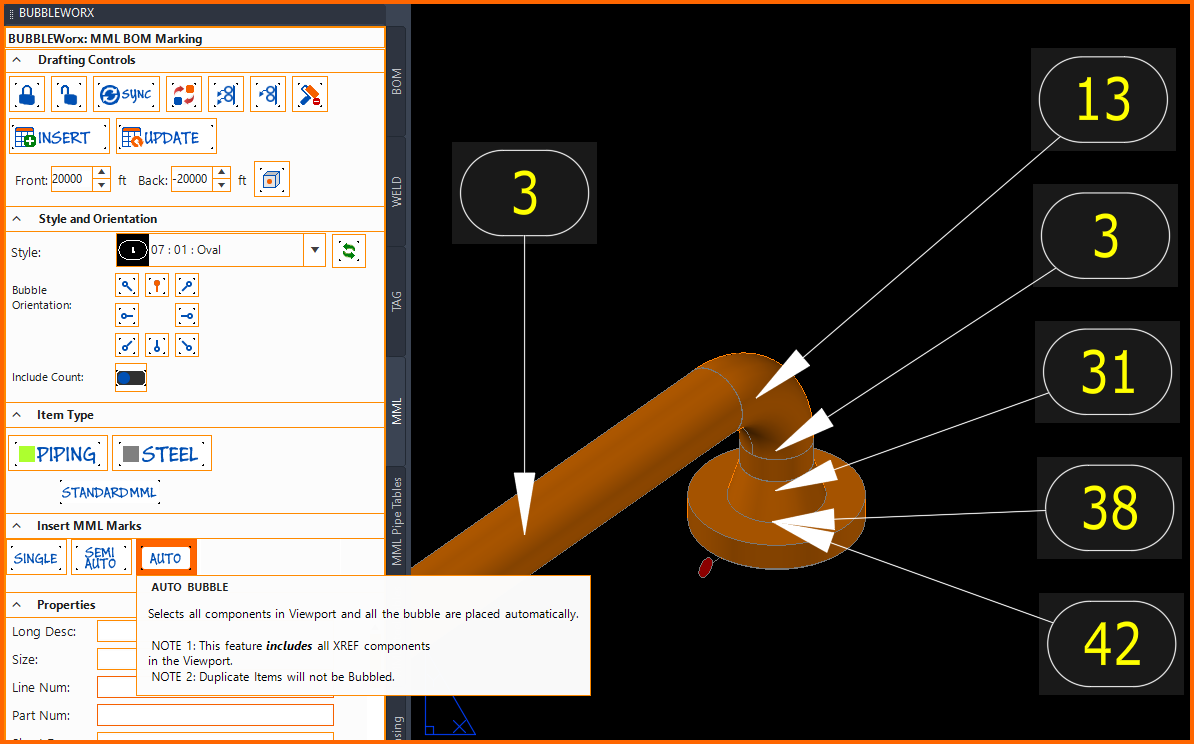
- Use the Color Reset to set defaults
After initial bubble insertion, the Color Reset button sets all MML bubble values to the default values defined in the MLeader and Worx Plugin settings.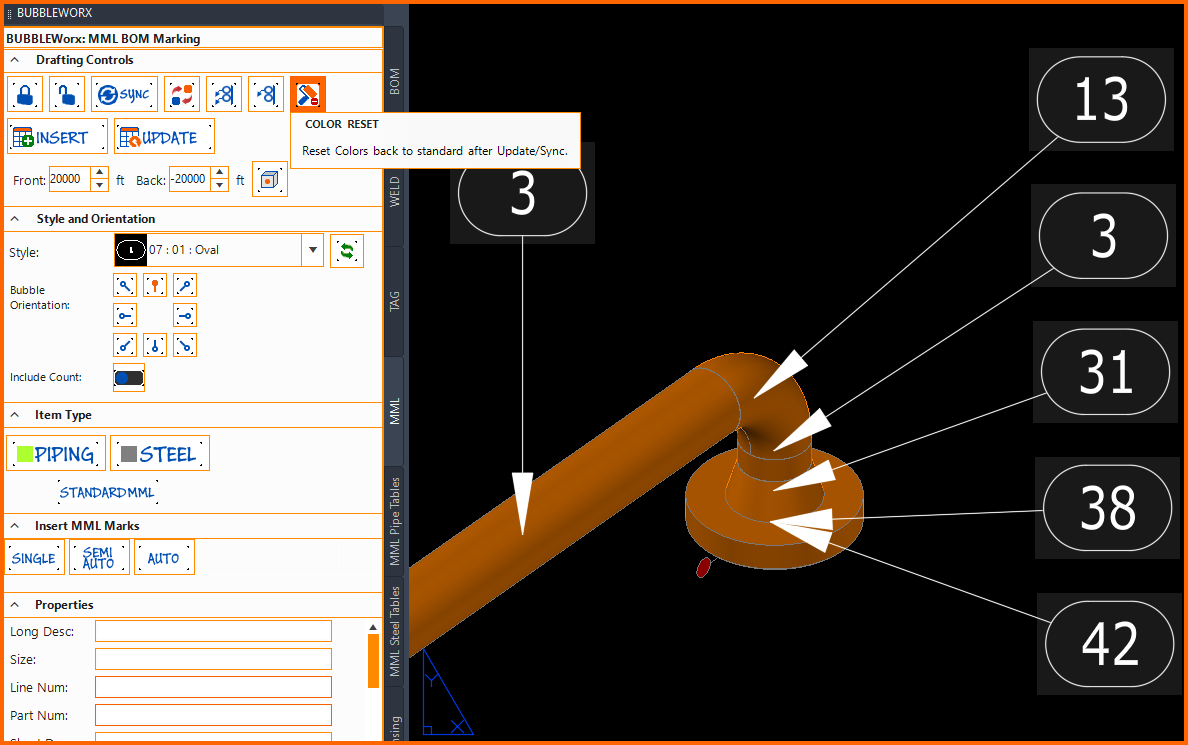
Existing 3D Part Description Changed
- 3D Model description changes
After parts have been marked, BUBBLEWorx inspects the original part descriptions against model descriptions. In this case, the part Long Description (Family) was changed.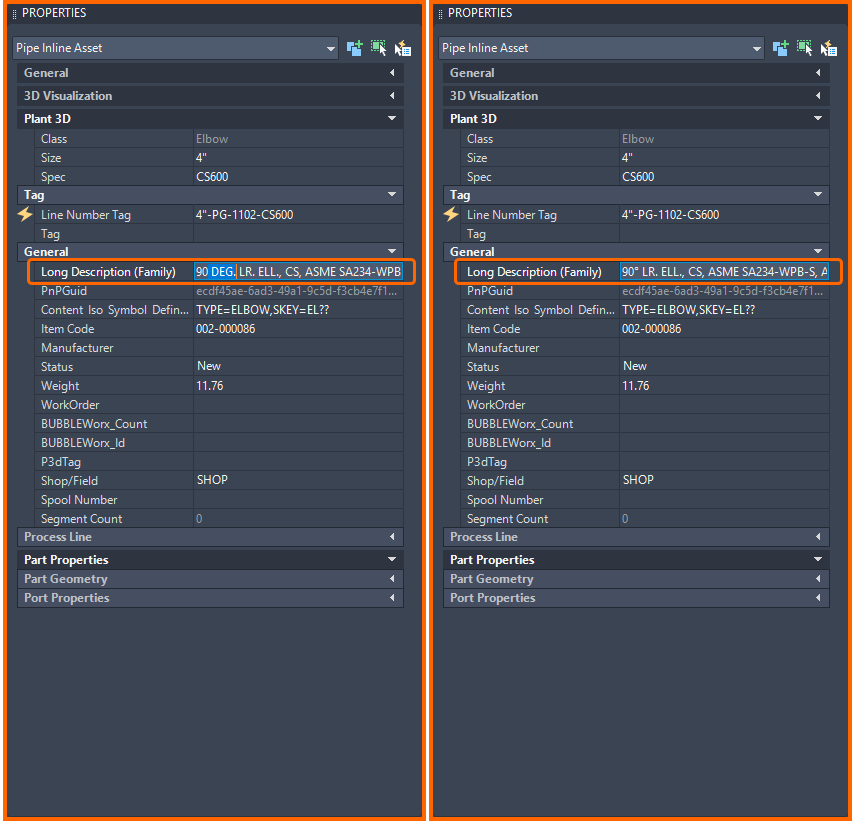
- Sync bubbles and resolve ** YELLOW MML values
MML Bubble values will populate with two asterisks and set their color to YELLOW. This indicates that the MML Table does not contain a row where size and description match.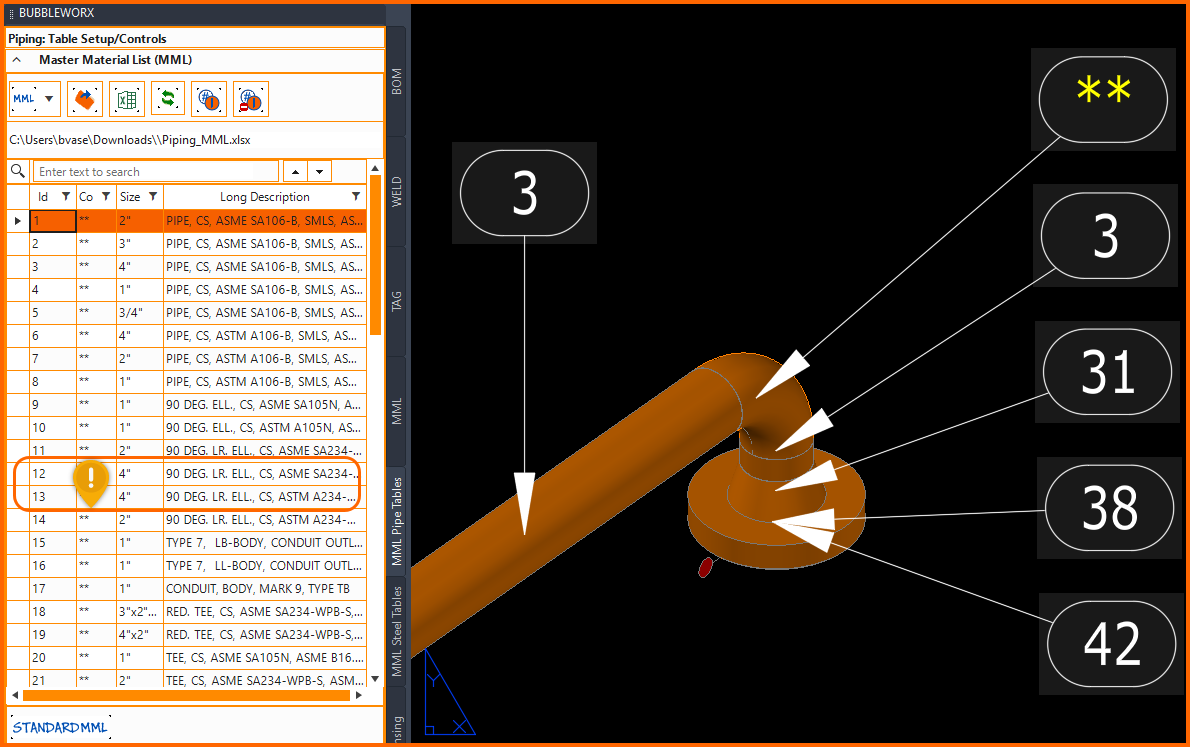
- Color Reset changes mismatches
MML Bubble values populated with an asterisk will be set to default colors and will persist until the next Sync event.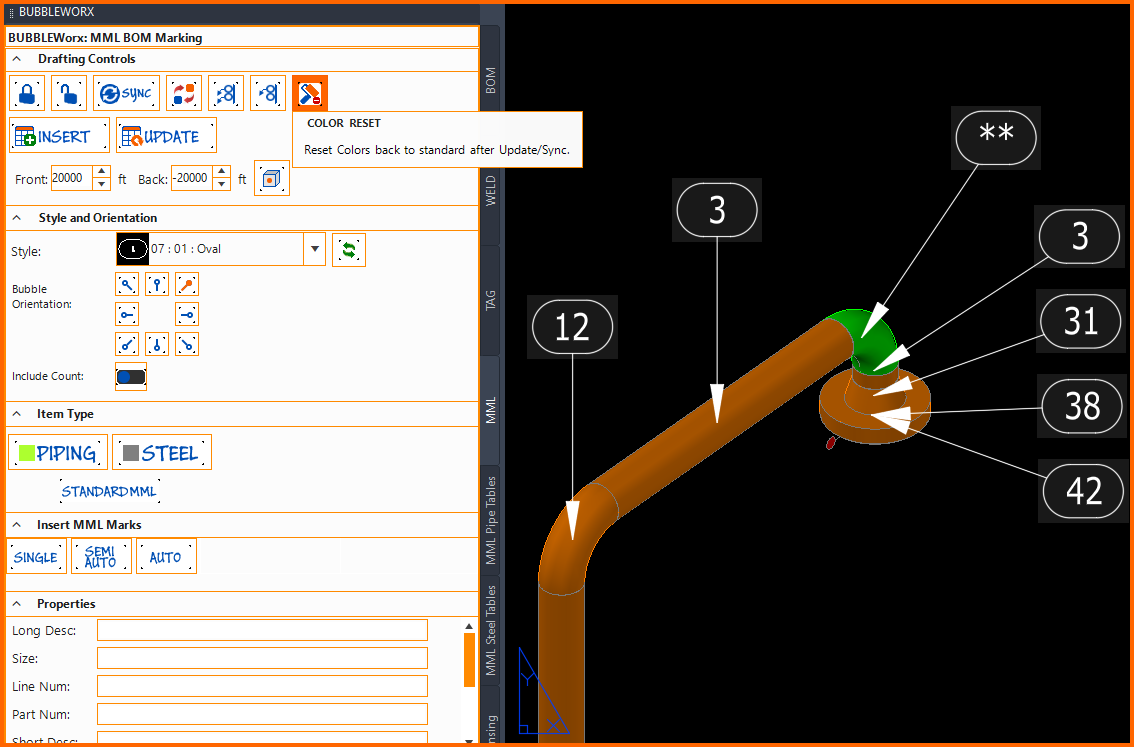
Existing Bubbles are Orphaned
Erase or redraw parts
After parts have been marked, BUBBLEWorx inspects bubbles for their matching 3D parts on every Sync.
This is done by comparing AutoCAD's unique identifiers. Bubbles become orphans when parts are erased or replaced. Missing AutoCAD external drawing references could also be missing. All these cases will cause the MML MLeader to become RED and Values ORANGE.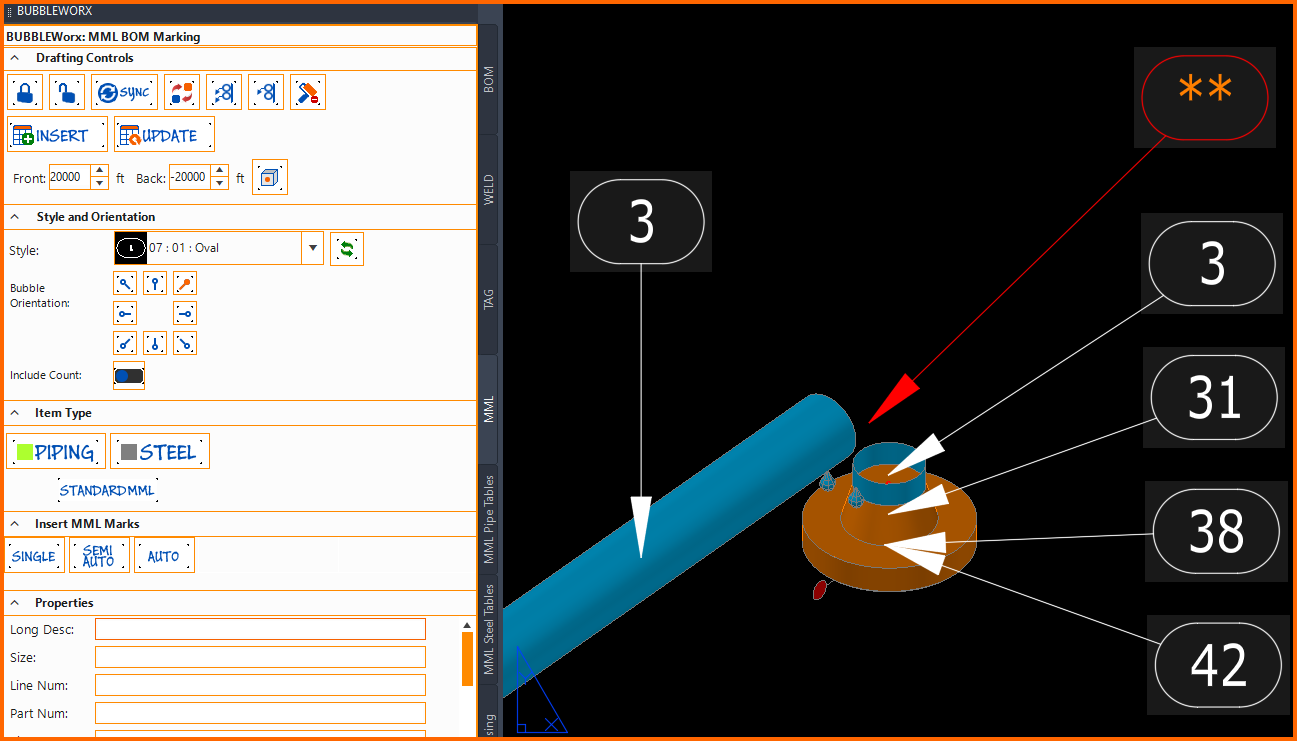
Pro Tip:
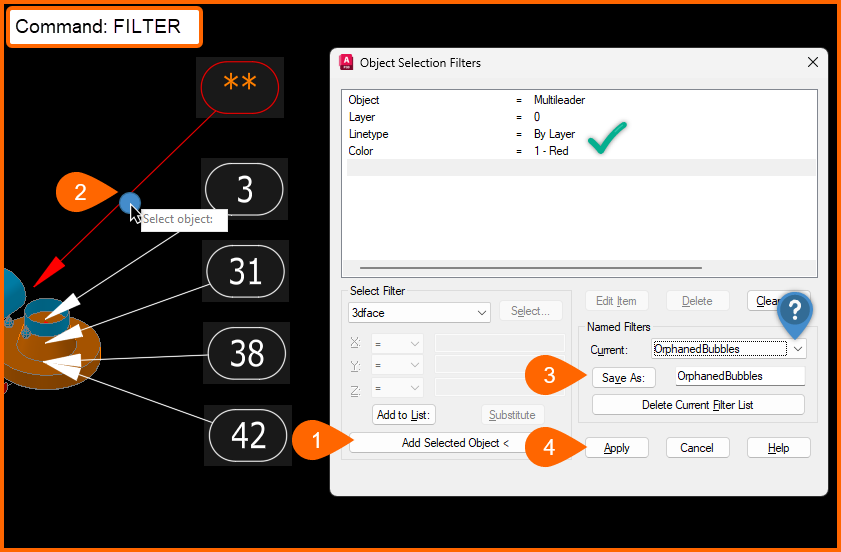
Use the AutoCAD FILTER command to isolate bubble states. Name filters by BUBBLEWorx states, such as orphaned, and toggle between them to make targeted selection sets. In this case, MLeader with color set to RED is sufficient as the criterion, and using the Add Selected Object sets that.
Duplicate CADWorx GUID Error
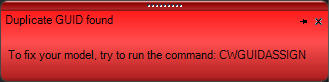
There are times in CADWorx when it duplicates GUIDs on components. A GUID is an individual tracking number for every CADWorx Plant object. This is how the software can differentiate between identical items in the model. When there are duplicate GUIDs in a model, we have no way of determining which bubble is 'linked' to a particular item. When items with duplicate GUIDs are found, you will see a message like this:
In those instances we do not add a mark number to the duplicate items and they will be shown like the # bubble in the image below.
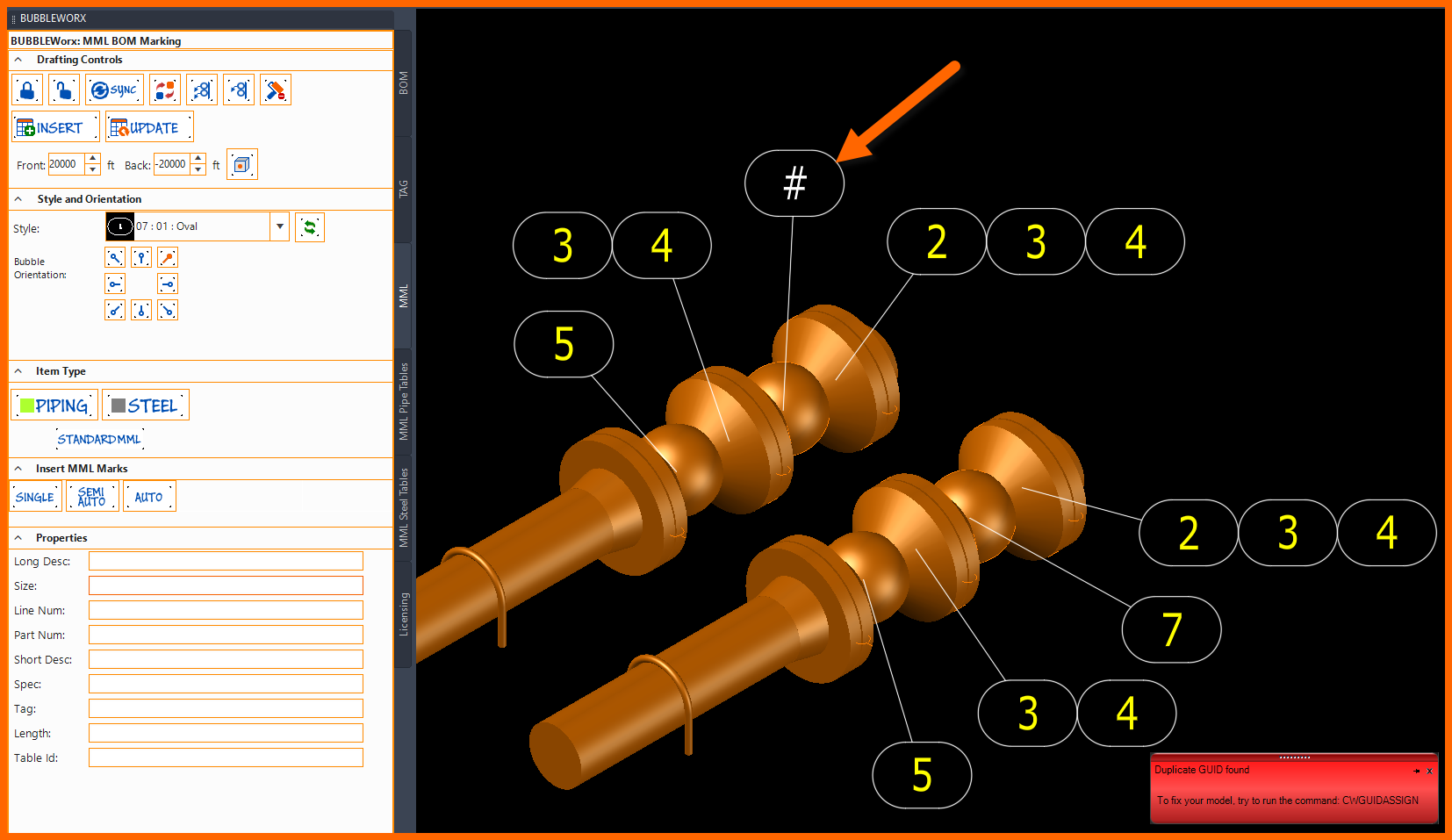
Users need to run the CWGUIDASSIGN command to fix the items in the model.