Scope
This document educates BUBBLEWorx users on the built-in colorization states bubbles adopt after insertion and subsequent 3D model changes. These are some of the color states that are unique to the Bill of Materials (BOM) palette tab bubbles. The BOM, Weld, Tag, and Master Material List (MML) colorizations are similar, but they differ. It explores the BOM tab Drafting Controls, which are available to sync existing bubbles. It describes the built-in inspections of bubbles, 3D Parts, and BOM tables within active drawings and results displayed via colorization and bubble value changes.
Prerequisites
Software: BUBBLEWorx
3D Model: CADWorx Plant, CADWorx Structure or AutoCAD PLANT 3D parts
Colorization States:
The BUBBLEWorx interface includes built-in quality control tools. Since BUBBLEWorx strives to maintain associations between its BOM bubbles, BOM tables, and the 3D model parts being marked, it colorizes BOM bubble values when they change to inform users about their status.
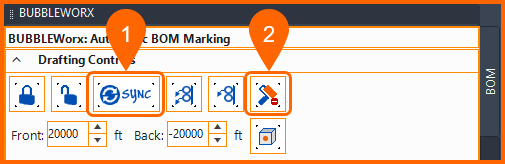 New Bubbles Added and Reset
- Existing 3D Part Description Changed
- Existing Bubbles are Orphaned
- Replacing Orphaned Bubble
New Bubbles Added
BUBBLEWorx inserts bubbles on parts automatically when using the VIEWPORT options. To complete the BOM annotation process, users place a BOM table in drawings. These are native AutoCAD table objects, and BUBBLEWorx strives to keep them in sync with all the inserted bubbles on drawing Layout Tabs.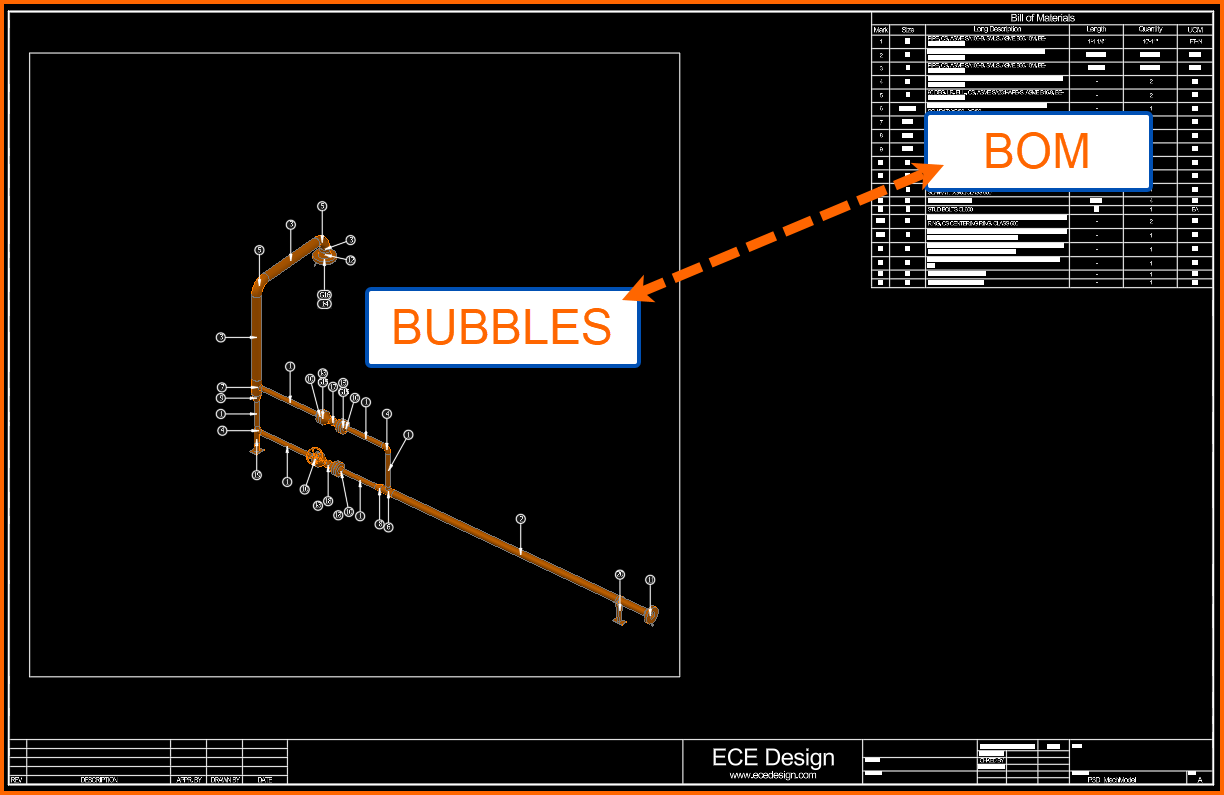
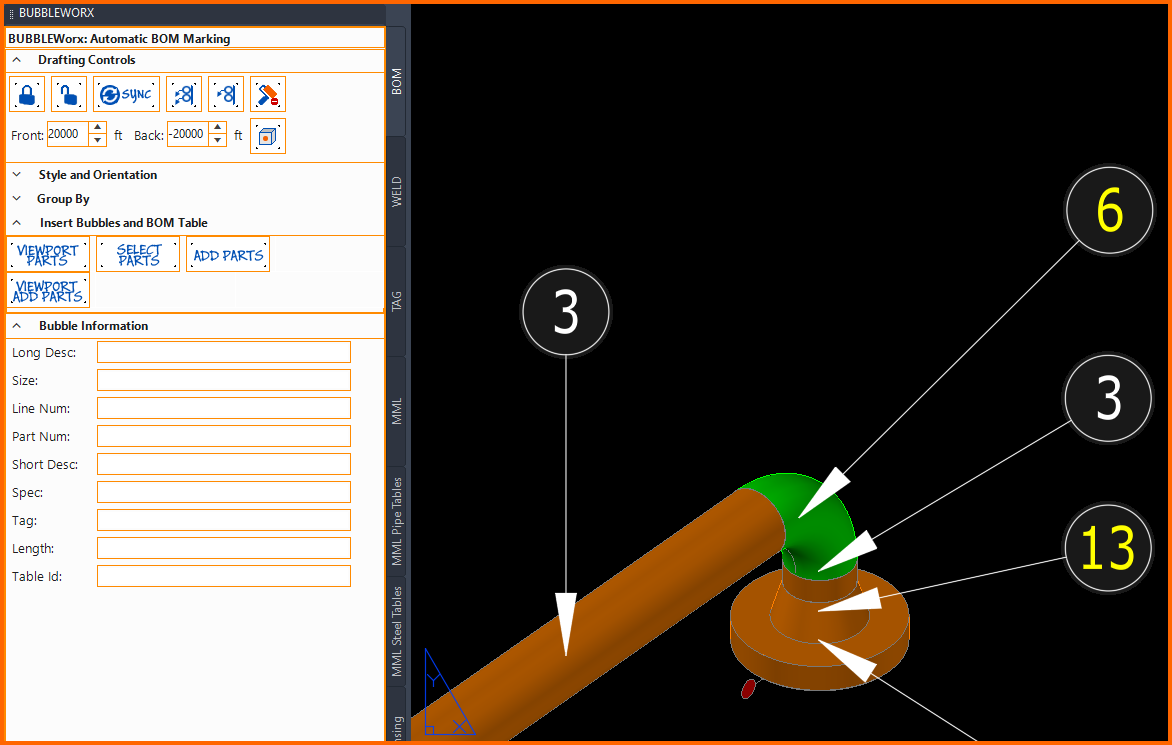
Every time bubbles are inserted, the MLeader Object layer is set to default, but the identifiers are set to YELLOW by the system.
- Insert Bubbles and BOM values are YELLOW
BOM bubble values are inserted into the AutoCAD drawing layer set within the Worx Settings, but its color is set to YELLOW. This color will persist until the Color Reset command is executed. All bubble BOM values will change from YELLOW to the color set on the block attribute.
Note: The newly inserted BOM bubble value color is yellow, and there are no options to change.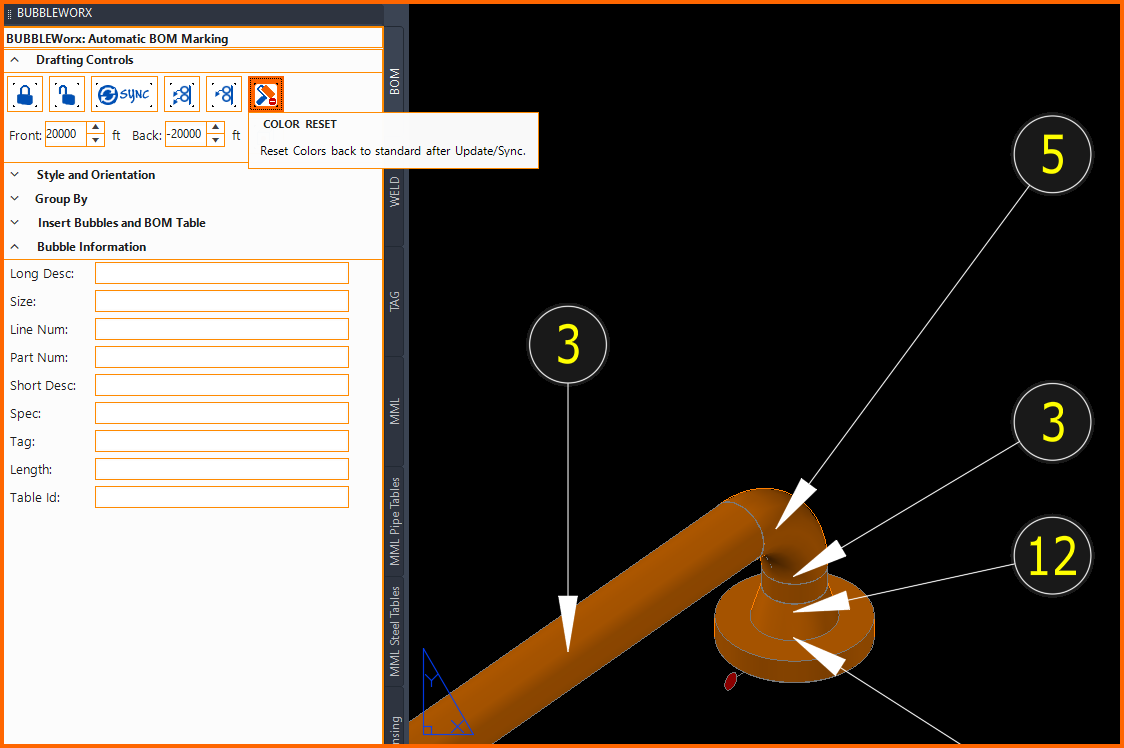
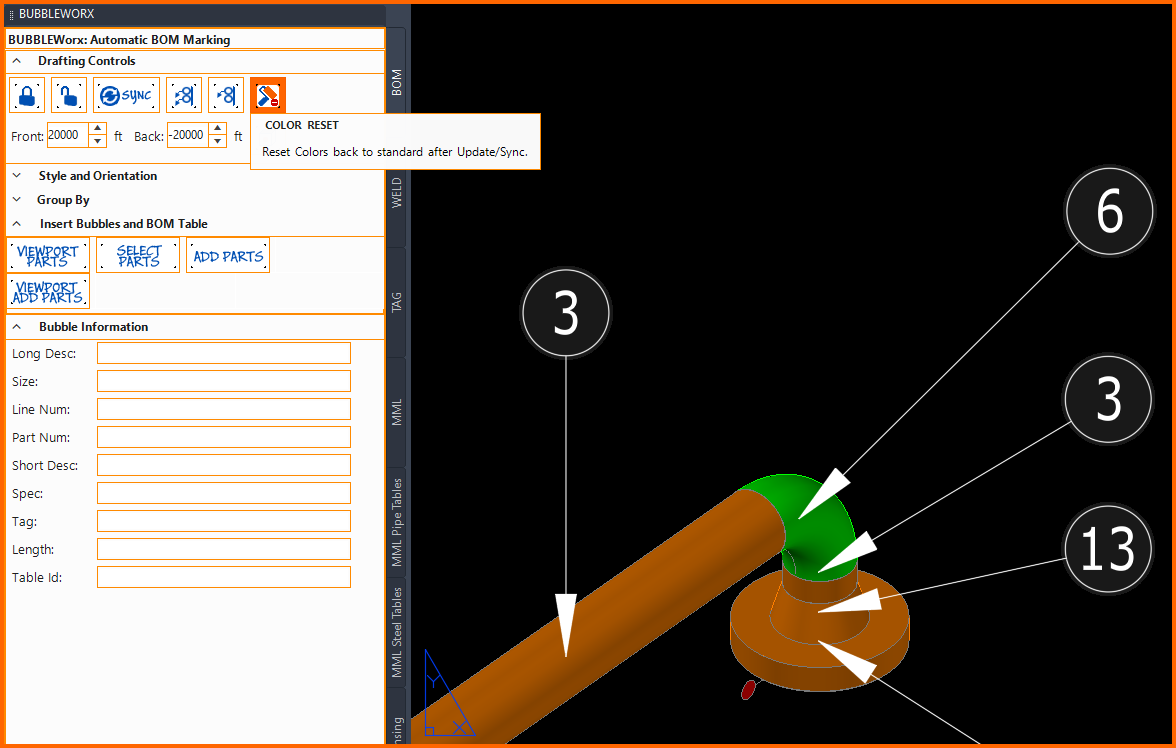
- Color Reset results
After initial bubble insertion, the Color Reset button sets all BOM bubble value colors to defaults, and in this example, that is ByLayer, or White.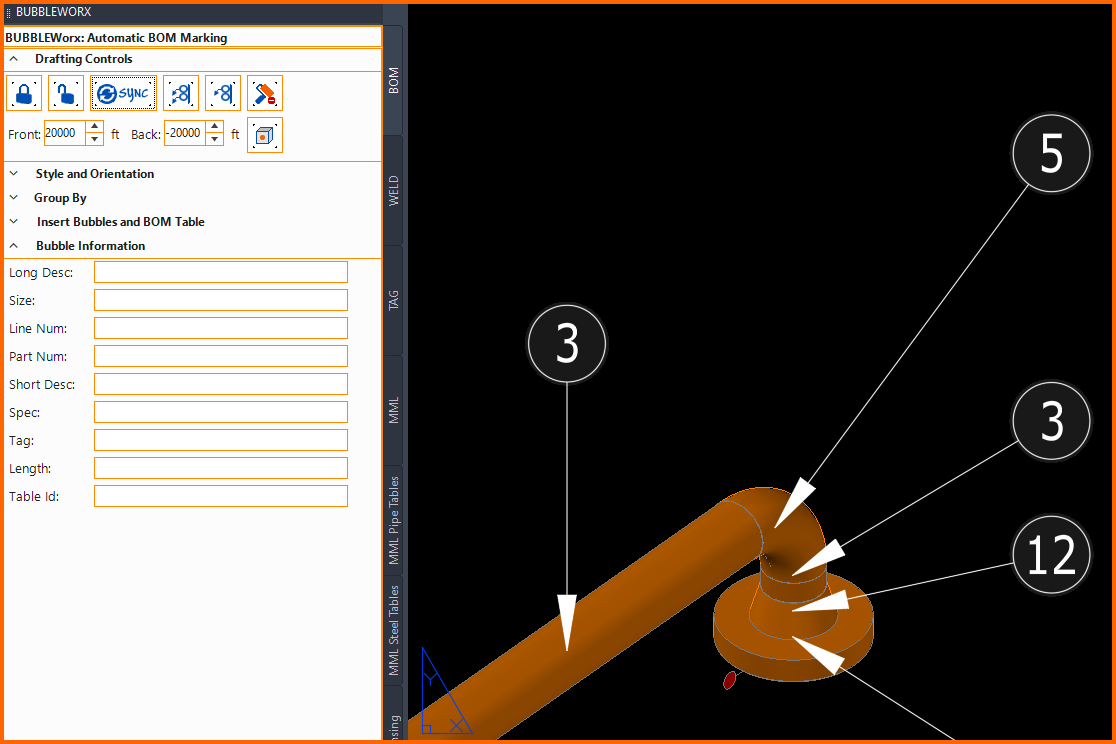
Existing 3D Part Description Changed
- 3D Model description changes
After parts have been marked, BUBBLEWorx inspects the original part descriptions against model descriptions. In this case, the part Long Description (Family) was changed. Sizes, descriptions, and part numbers are inspected.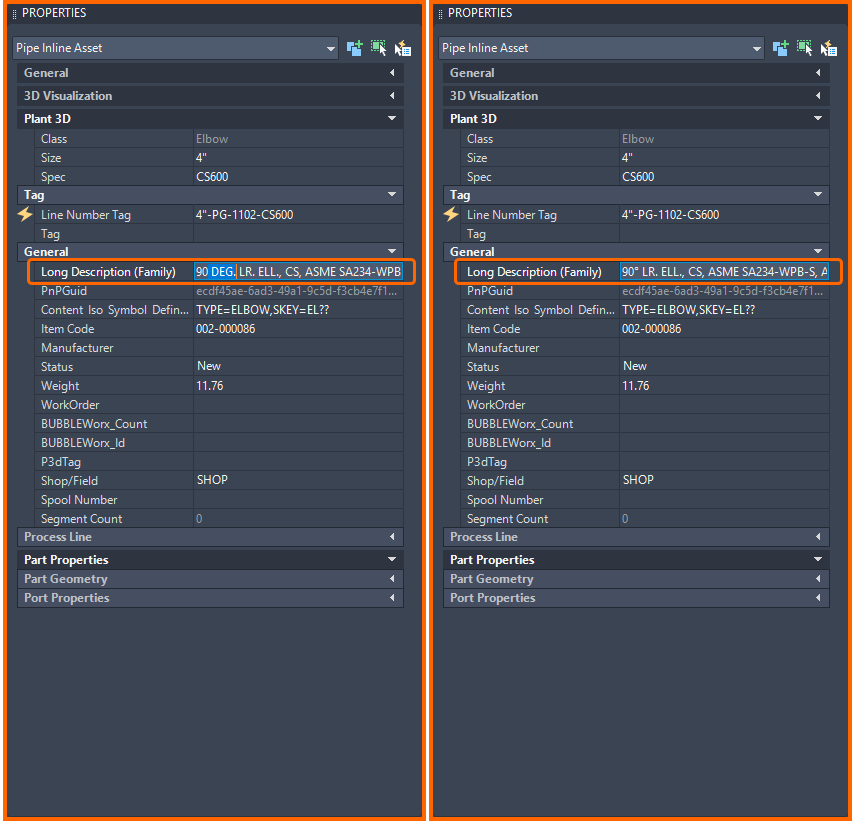
- Sync auto-updates BOM tables, bubble values, and bubble color.
BOM bubble values will exist as BOM table rows because, at its core, BUBBLEWorx strives to keep inserted bubbles and tables synchronized.
In this example, the elbow description of BOM Bubble/Row (5) was changed. After running the Sync command, BUBBLEWorx automatically adds a BOM table row (6), and increments every row above it by one. It added a row because the new elbow size and description did not exist in the table. If it had existed, then the bubble would have adopted that BOM Table row value. It did not exist in this case, so it adds a new row, and therefore must increase all BOM values by one above it.
This is why (6) and (13) are yellow in the image below. Item (3) remains unchanged because the pipe was below elbows in the BOM table numbering scheme and therefore not affected.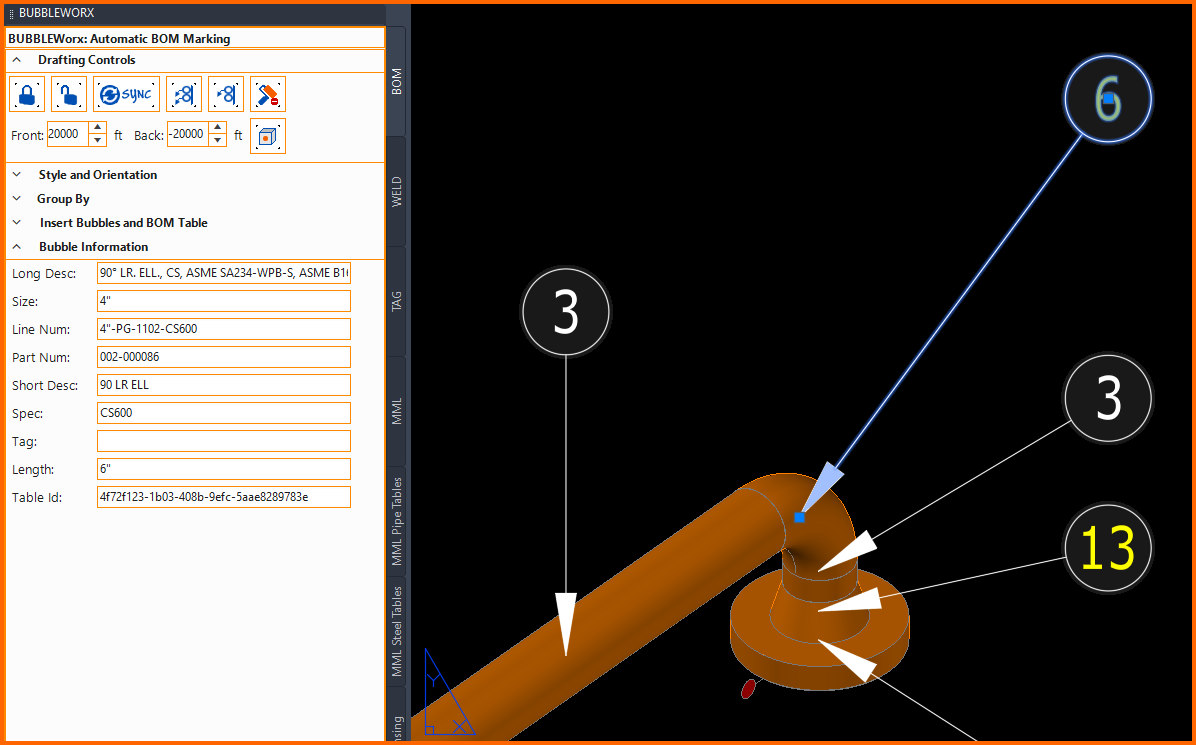
- Use Color Reset to change colorization to defaults
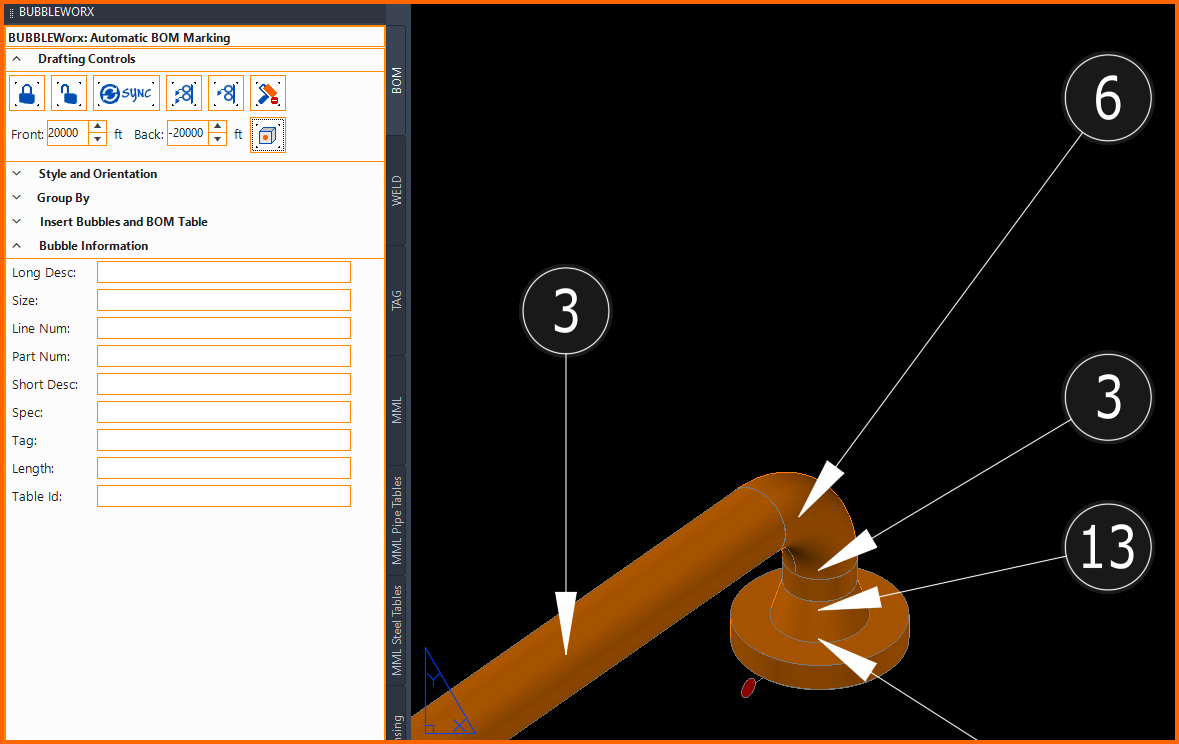
BOM Bubble values are set to the default color by using COLOR REST.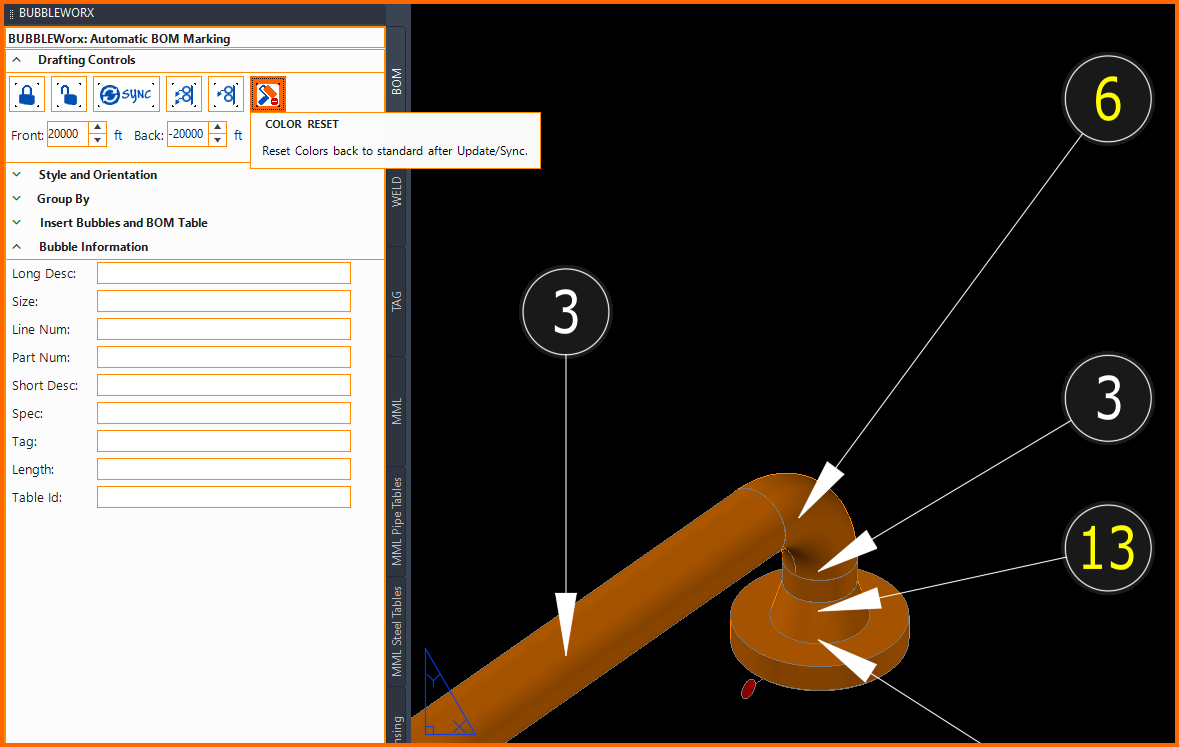
Existing Bubbles are Orphaned
- Erased parts
After parts have been marked, BUBBLEWorx inspects bubbles for their matching 3D parts on every Sync.
This is done by comparing AutoCAD's unique identifiers. Bubbles become orphans when parts are erased or replaced. Missing AutoCAD external drawing references could also be missing.
In this case, an elbow (6) was erased.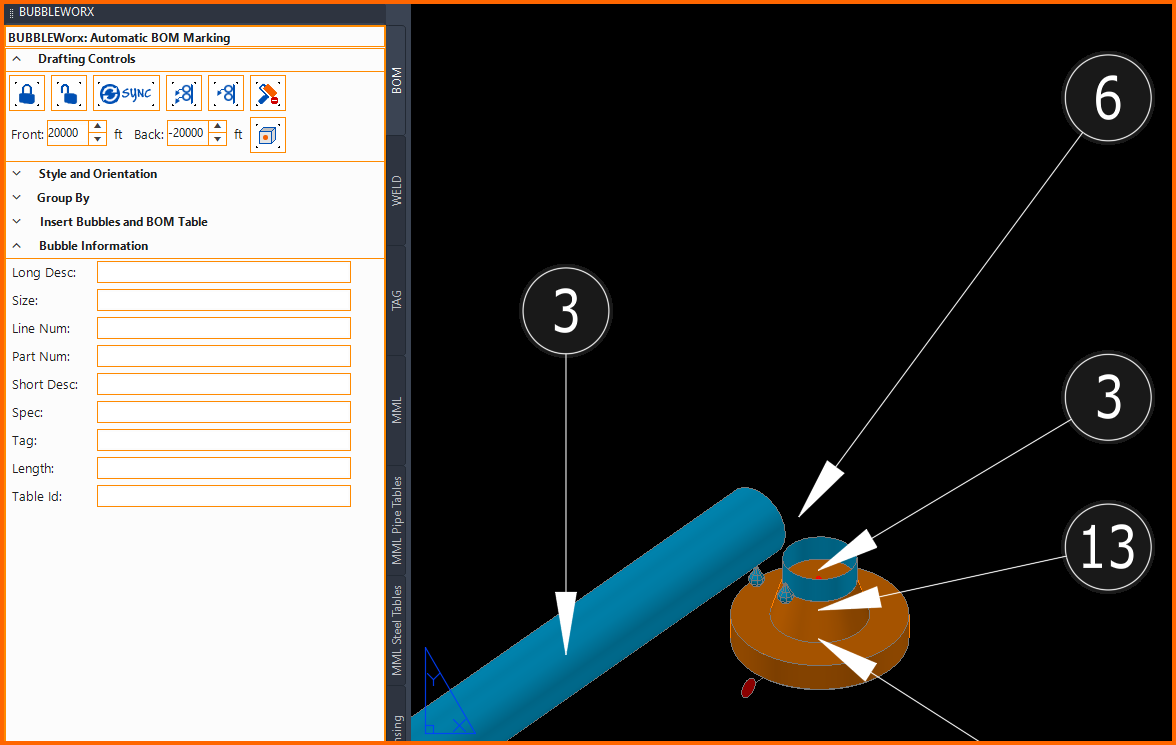
Running the SYNC ANNOTATIONS command inspects all bubbles to ensure associations exist between them and their parts.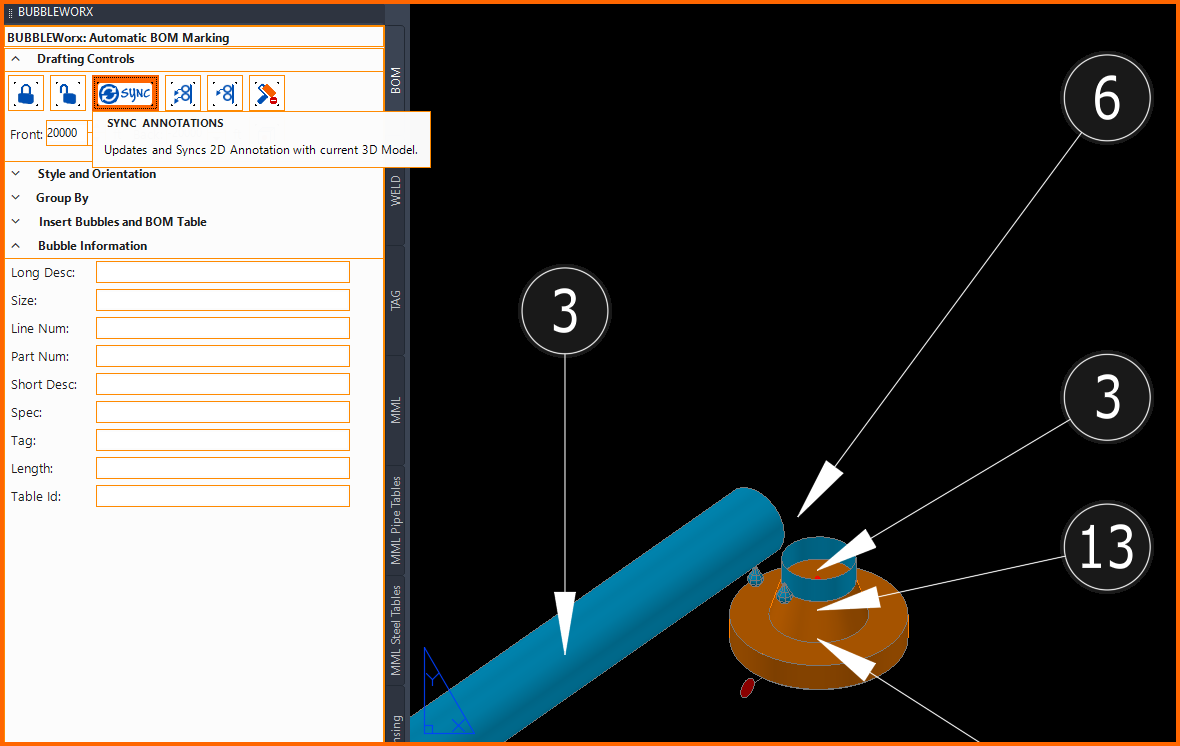
If parts do not exist, their BOM bubble values change to a pair of red asterisks. These orphaned bubbles must be erased and replaced as described in the next section.
Note: Since the BOM table row (6) no longer exists, all the parts above it will decrement by one. (12) is yellow because it was 13.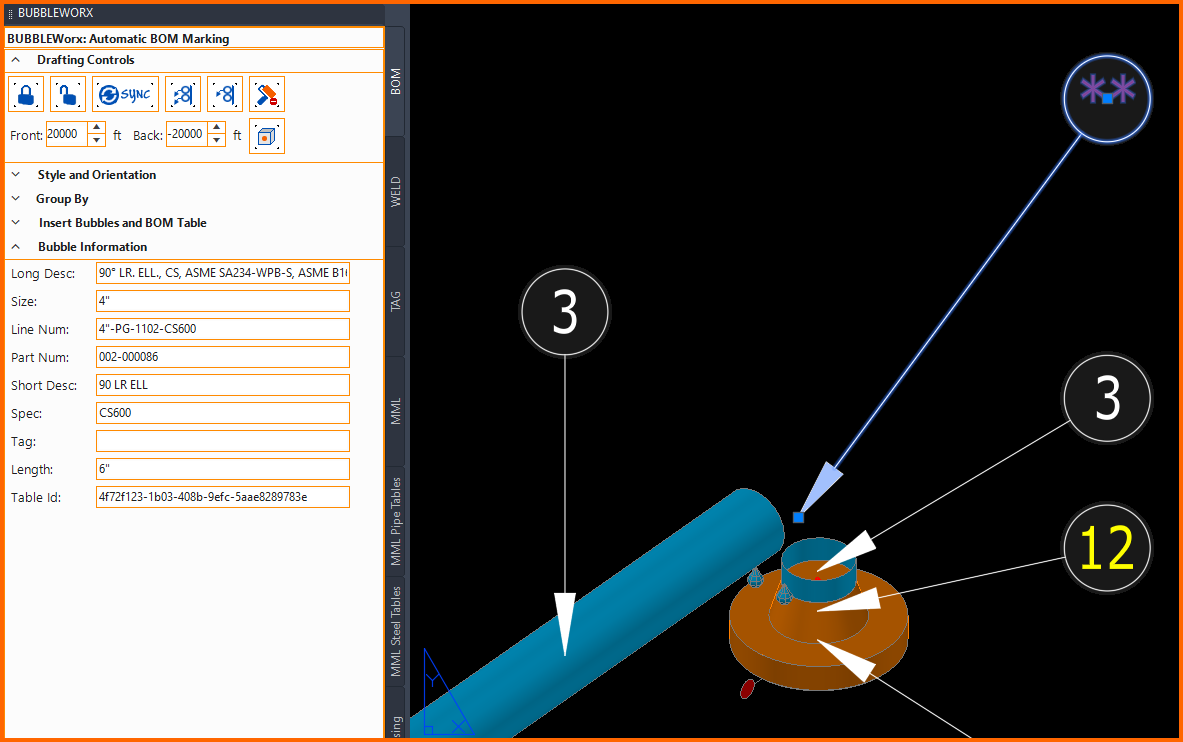
Replacing Orphaned Bubbles
Whenever BOM bubbles become orphaned, they must be erased and replaced.
- Erasing all ** bubbles
Any BOM bubbles with two red asterisks for its value have been orphaned and must be removed manually. Use the AutoCAD ERASE command and select them all. They will never reconnect to a model object.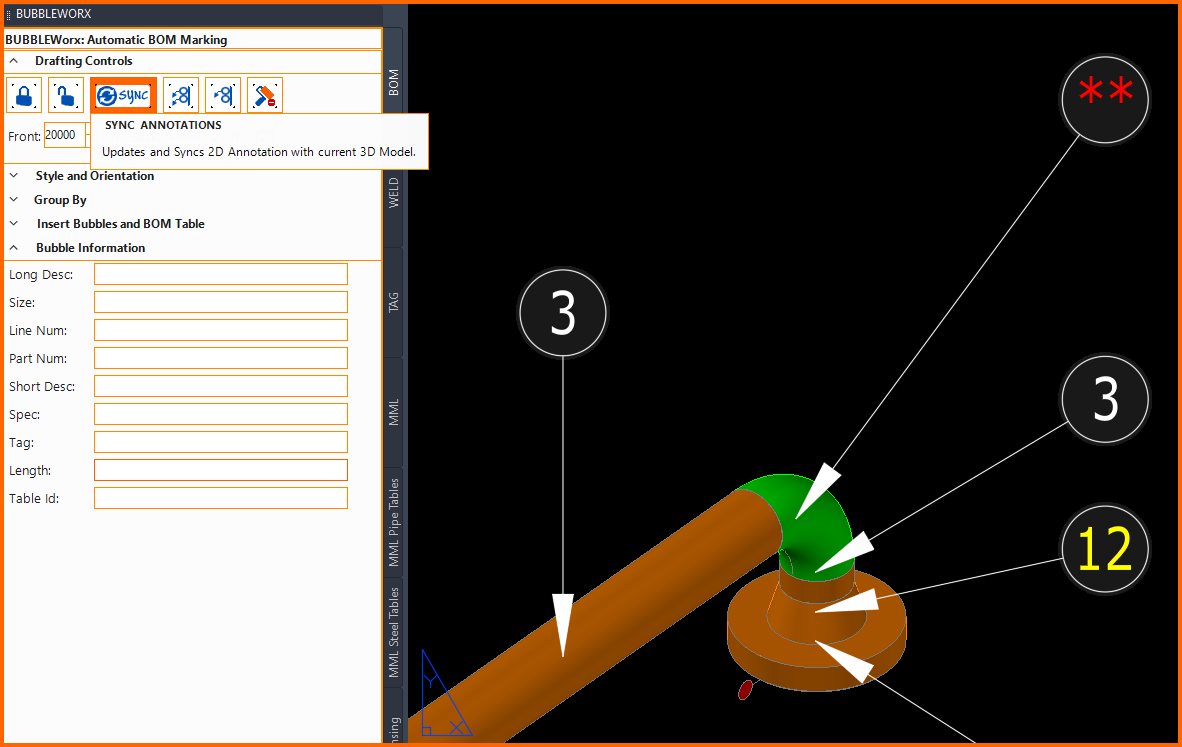
- Replacing all ** bubbles
The ADD PARTS, or VIEWPORT-ADD PARTS commands are used to replace bubbles.
ADD PART enables one-by-one control.
VIEWPORT-ADD PARTS enables bulk insertion.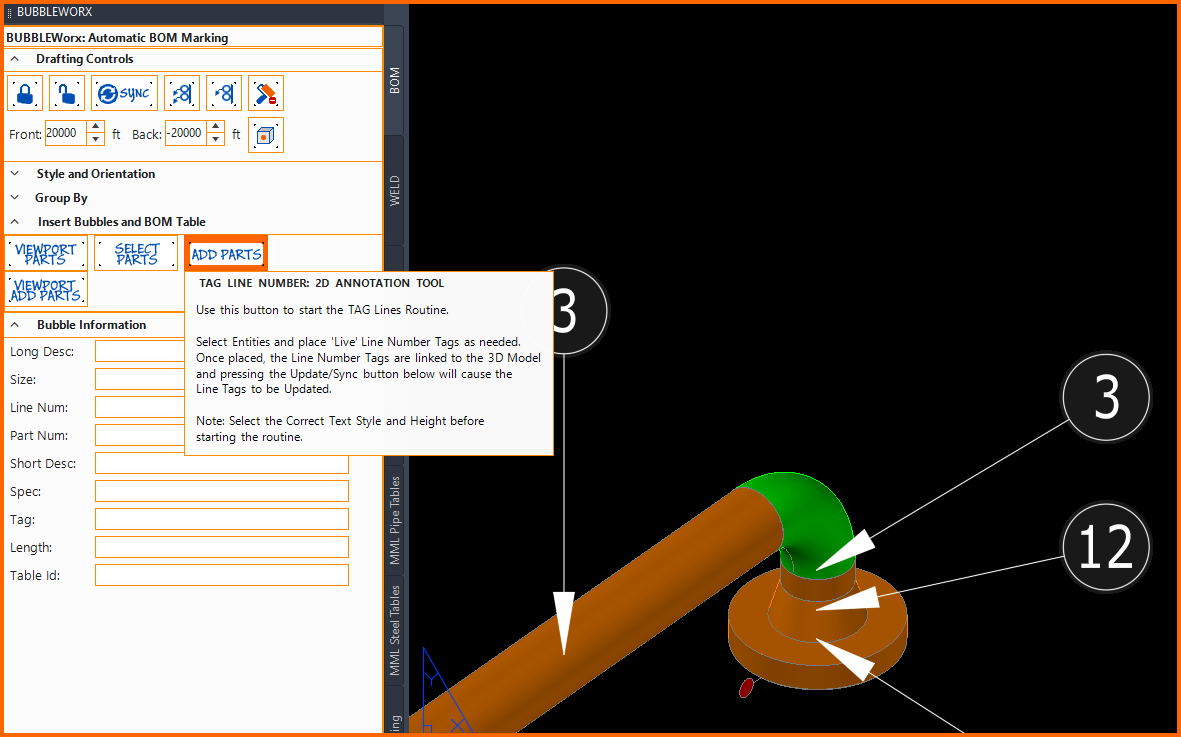
- Color Reset
Once bubbles are added, there is a likelihood of them being added as new BOM tables rows, hence affecting the BOM bubble values on rows above them. As a result, many bubbles values and colors will change. The BOM bubble values will be automatically synchronized with the BOM table rows.