Issue:
The Worx plugins do not load when AutoCAD, BricsCAD or CADWorx starts, so you have to run NETLOAD by hand every time. The most common report is that RIBBONWorx loads, then the ribbon is gone again after a restart.
You can solve this three ways: run INSTALLWorx, which updates the registry for you; write the registry entries yourself; or autoload a Lisp routine that loads the ribbon. All three are below.
Solution:
INSTALLWorx
Run the INSTALLWorx software as an Administrator. You can find the executable here:
"C:\Program Files\ECE Design\Worx Plugins\AutoCAD Legacy\INSTALLWorx.exe"
If you do not have administrator rights on your machine, use the registry files in the next section instead. They write to your own user account and do not need an administrator.
Registry
When the installer for the plugins is run, it should install registry entries for each of our plugins. If the user does not have administration rights or the machine is locked down in such a way as not to allow software to modify the registry, then these registry entries will fail to be installed. When this happens, the user will need to netload the assemblies. When the assembly is netloaded inside of AutoCAD, the software also attempts to install the registry entries. This too can fail for different reasons. When this happens, then they will need to be installed manually, either by importing one of the files attached to this article or by using the REGEDIT program inside of Windows.
The location of the registry entry is set by the year of the AutoCAD release and by which Autodesk product it is, so AutoCAD, Plant 3D, Civil 3D and MEP each get their own entry.
Download the files
Everything is in one download: Worx_Manual_Load_Files.zip, attached at the bottom of this article. Unzip it and pick only the file that matches your CAD program and year — you do not need the rest. There is a README.txt inside with the same instructions.
| Folder in the zip | Use it for | Files |
| AutoCAD | AutoCAD, and CADWorx running on AutoCAD | WorxLoader_AutoCAD 2023.reg through 2027.reg |
| Plant 3D | AutoCAD Plant 3D | WorxLoader_Plant3d 2023.reg through 2027.reg |
| BricsCAD | BricsCAD 64-bit, V24 and newer | BricsCADV24x64.reg, BricsCADV25x64.reg, BricsCADV26x64.reg |
| Lisp | Loading the ribbon only, if you cannot import a .reg file at all | acad.lsp, in a folder per AutoCAD era |
If you run both plain AutoCAD and Plant 3D, import both files for your year.
How to import a registry file
- Close all AutoCAD, BricsCAD and CADWorx windows.
- Right-click the .reg file, choose Properties, and tick Unblock if it is there. Windows blocks files downloaded from the internet until you do this.
- Double-click the file and accept the prompt.
- Start your CAD program.
These files write to HKEY_CURRENT_USER, which is your own account, so they do not need administrator rights.
Which registry key belongs to which year
The registry names an AutoCAD release by its release number, not by its year. If you want to check what you have, open REGEDIT and look under HKEY_CURRENT_USER\Software\Autodesk\AutoCAD.
| Year | Release | AutoCAD | Plant 3D | Loads plugins from |
| 2023 | R24.2 | ACAD-6101:409 | ACAD-6117:409 | AutoCAD Legacy folder |
| 2024 | R24.3 | ACAD-7101:409 | ACAD-7117:409 | AutoCAD Legacy folder |
| 2025 | R25.0 | ACAD-8101:409 | ACAD-8117:409 | AutoCAD folder |
| 2026 | R25.1 | ACAD-9101:409 | ACAD-9117:409 | AutoCAD folder |
| 2027 | R26.0 | ACAD-A101:409 | ACAD-A117:409 | AutoCAD folder |
Under your release you will see one key per Autodesk product you have installed. If you run a product that is not in the table, such as Civil 3D or MEP, send us your product code and we will send you a matching file.
Which folder the plugins load from
AutoCAD 2024 and older load the files from:
C:\Program Files\ECE Design\Worx Plugins\AutoCAD Legacy\
and will not have .Core at the end of the name.
AutoCAD 2025 and greater will load from
C:\Program Files\ECE Design\Worx Plugins\AutoCAD \
and will have .Core at the end of the name.
This is why a registry file for one year will not work for another. A 2024 file points at the AutoCAD Legacy folder, so importing it for 2026 leaves AutoCAD pointing at files it cannot load.
Note: If this needs to be done on multiple machines then do it on one machine and then export the registry entries or use the standard files attached to this article. You can then import the entries onto the remaining machines.
Writing the entries by hand
If you would rather type the entries into REGEDIT yourself, the two examples below show the two kinds of entry. Both are for AutoCAD 2025; for another year swap the release and product code using the table above.
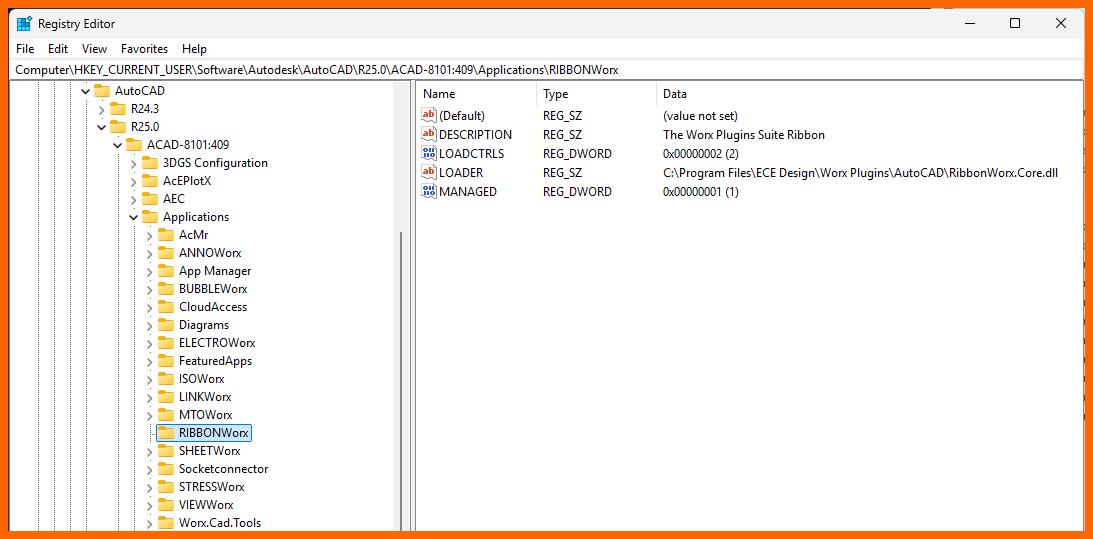
Registry Entry for RIBBONWorx in AutoCAD 2025
Computer\HKEY_CURRENT_USER\Software\Autodesk\AutoCAD\R25.0\ACAD-8101:409\Applications\RIBBONWorx
| Name | Type | Data | Description (Not actually in Registry Entry) |
| (Default) | REG_SZ | (value not set) | |
| DESCRIPTION | REG_SZ | The Worx Plugins Suite Ribbon | Description of the .NET assembly and is optional. |
| LOADCTRLS | REG_DWORD | 0x00000002 (2) | Controls how and when the .NET assembly is loaded. RIBBONWorx uses 2, which means load at start-up. |
| LOADER | REG_SZ | C:\Program Files\ECE Design\Worx Plugins\AutoCAD\RibbonWorx.Core.dll | Specifies which .NET assembly file to load. |
| MANAGED | REG_DWORD | 0x00000001 (1) | Specifies the file that should be loaded is a .NET assembly or ObjectARX file. Set to 1 for .NET assembly files. |
Registry Entry for BUBBLEWorx in AutoCAD 2025
Computer\HKEY_CURRENT_USER\Software\Autodesk\AutoCAD\R25.0\ACAD-8101:409\Applications\BUBBLEWorx
| Name | Type | Data | Description (Not actually in Registry Entry) |
| (Default) | REG_SZ | (value not set) | |
| DESCRIPTION | REG_SZ | BUBBLEWorx places annotated bubbles with Tags data and Mark numbers on piping component | Description of the .NET assembly and is optional. |
| LOADCTRLS | REG_DWORD | 0x0000000c (12) | Controls how and when the .NET assembly is loaded. Every plugin except RIBBONWorx uses 12, which means load when one of its commands is typed. |
| LOADER | REG_SZ | C:\Program Files\ECE Design\Worx Plugins\AutoCAD\BubbleWorx.Core.dll | Specifies which .NET assembly file to load. |
| MANAGED | REG_DWORD | 0x00000001 (1) | Specifies the file that should be loaded is a .NET assembly or ObjectARX file. Set to 1 for .NET assembly files. |
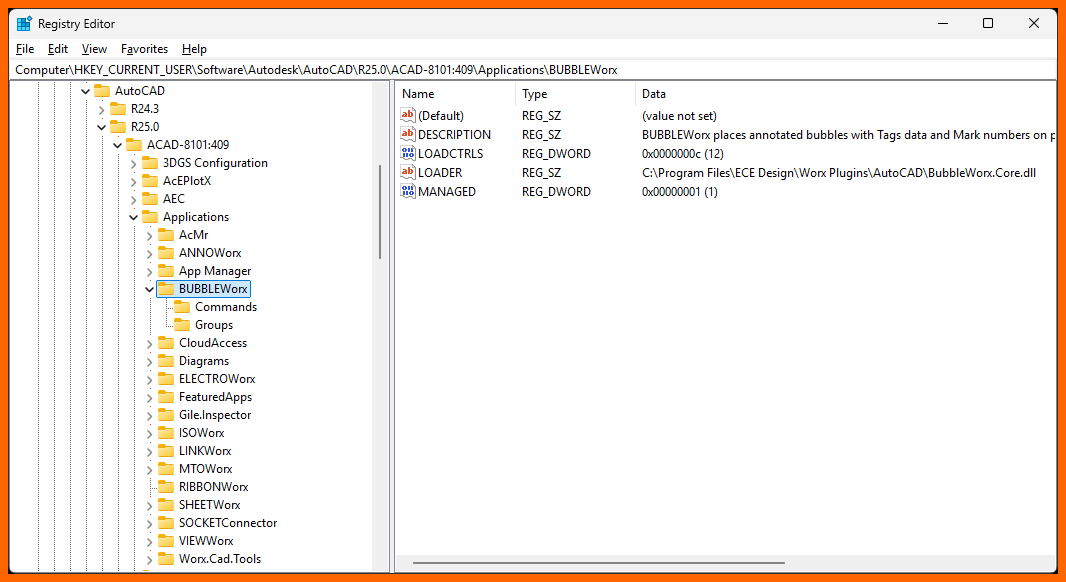
A plugin set to 12 does not appear until you type one of its commands. That is normal and is not a sign that it failed to load. RIBBONWorx is the one set to 2, so the ribbon is there as soon as AutoCAD opens.
For BricsCAD the process is identical except for the location of the entries.
BricsCAD entries live under HKEY_CURRENT_USER\Software\Bricsys\BricsCAD\V26x64\en_US\Applications, with the version number changing to match your BricsCAD. Four plugins run on BricsCAD: ANNOWorx, BUBBLEWorx, MTOWorx and RIBBONWorx. We support BricsCAD V24 and newer.
(Editing the Registry can cause serious issues if not done correctly. Do not edit the registry unless you are completely comfortable within the regedit environment)
Lisp Routine
If you cannot import a registry file at all, an acad.lsp file will NETLOAD the ribbon every time AutoCAD starts. This loads the ribbon only, not the other plugins, so treat it as a fallback rather than a replacement for the registry entries.
The zip has one in each of these folders. Use the one that matches your year, not both:
Lisp\AutoCAD 2024 and older\acad.lsp
Lisp\AutoCAD 2025 and newer\acad.lsp
They differ only in which folder they load the ribbon from, for the reason given above.
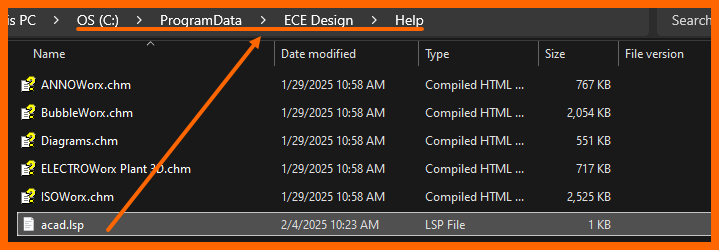
Save the acad.lsp into a folder that is part of the AutoCAD File Search Path. Below is one location you can use: